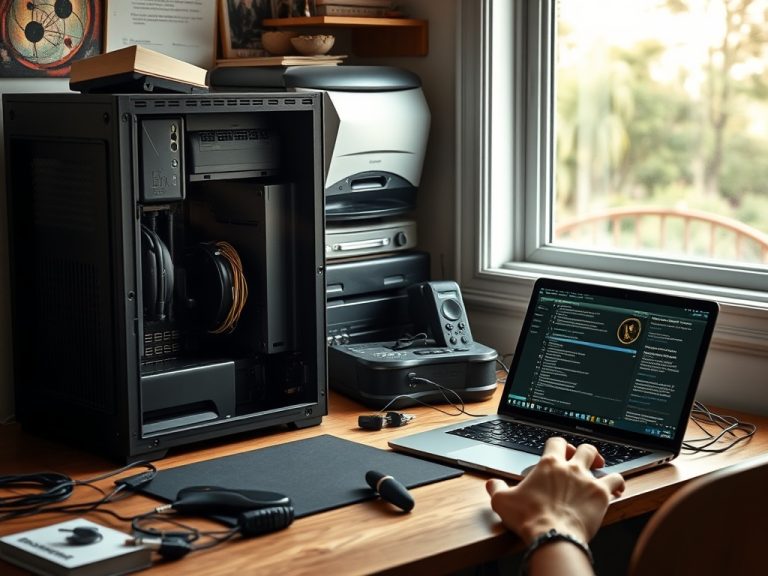
A desktop setup should be reviewed as a full workspace: performance needs, monitor layout, ports, network, backup, power, ergonomics, and upgrade room. Buying or upgrading only the tower often leaves the real bottleneck untouched.
Desktop planning checks that save rework
– Plan the whole desk, not just the desktop tower.
– Match specs to actual apps, monitors, network needs, and backup habits.
– Check upgrade limits and return policies before committing to parts.
Content focus: Checklist | Hardware & Devices | Search intent: Informational | Audience stage: Intermediate | Target keyword theme: desktops.
Define the job before selecting parts
A desktop can be a quiet office machine, a budget family computer, a design workstation, a gaming system, a media server, or a development box. Each job changes the right balance of processor, memory, storage, graphics, cooling, and monitor support.
The first checklist item is not a specification. It is a list of tasks: browser tabs, video meetings, spreadsheets, photo editing, coding tools, games, virtual machines, or local backups. Then note which tasks run at the same time. Multitasking usually exposes weak memory and storage decisions faster than single-app use.
If hardware terms still feel vague, review Computer Parts Mistakes to Avoid if You Want Less Digital Friction before shopping. It reduces the chance of paying for a high-number part that does not fix your daily problem.
Plan the desk, cables, and network together
A desktop setup includes the tower, display, keyboard, mouse, webcam, speakers, dock, power strip, external drives, and network connection. A powerful computer on a cramped desk with poor cables and weak Wi-Fi still feels messy. Measure the desk and check cable paths before ordering accessories.
A wired connection is worth planning when the machine handles video calls, uploads, cloud backups, online gaming, large file transfers, or shared storage. The related Ethernet Basics: Use wired connections where they matter most explains when a cable beats wireless convenience.
Power use is also part of setup quality. ENERGY STAR computer guidance can help readers think about efficiency, sleep behavior, and long-term operating costs without turning the article into a hardware spec sheet.
Desktop setup review matrix
| Checklist area | Question to ask | Why it matters |
|---|---|---|
| Performance | What apps must run at the same time? | This sets realistic CPU, RAM, and storage needs. |
| Display | How many monitors and what resolution? | Monitor choices affect graphics, ports, desk space, and cables. |
| Network | Can the desk use wired Ethernet? | A stable wired connection can solve many video-call and upload issues. |
| Power and backup | Is there surge protection and a backup plan? | A stronger desktop still needs data protection. |
| Upgrade path | Can parts be replaced later? | Case size, power supply, and motherboard slots limit future changes. |
Review operating-system fit before the upgrade
A desktop upgrade can trigger software questions: Windows compatibility, Linux driver support, backup restore steps, activation, encryption, and peripheral drivers. Do not wait until the new machine arrives to learn that an old printer, accounting program, or scanner has no supported driver.
For Windows users, Microsoft Windows help is a useful starting point for setup, recovery, and update questions. If the upgrade is also a chance to try Linux, compare beginner-friendly options in Ubuntu vs Linux Mint: Which Option Makes More Sense for fear of switching from windows? before replacing a working system.
Backups deserve a line item of their own. A new desktop is not a backup unless the old data is copied, verified, and recoverable. Keep at least one backup separate from the device so a power issue, theft, or malware event does not affect every copy at once.
Pre-purchase review list for a cleaner desktop build
- List must-run apps and the largest files you handle each week.
- Choose monitor resolution and count before confirming graphics and ports.
- Check desk depth, tower ventilation, cable length, and power-strip placement.
- Decide how files will be backed up before moving to the new machine.

- Confirm warranty, return window, and upgrade limitations before opening parts.
Practical QA before the desktop order
A useful rule for desktops is to keep the next action small enough to verify. Change one setting, test one connection, replace one habit, or compare one tool at a time. When several changes happen together, it becomes harder to know which one helped and which one introduced a new problem.
Document the baseline in plain language. For pre-purchase and upgrade planning for desktop computers, that means noting the device, account, browser, network, file, or workflow involved before making changes. Even a short note can prevent circular troubleshooting later, especially when more than one person is helping.
Be careful with advice that sounds universal. A recommendation can be correct in one context and wrong in another because CPU, RAM, storage, GPU do not affect every reader the same way. The best next step is the one that matches the reader's device, account risk, budget, skill level, and tolerance for disruption.
The middle-of-funnel reader usually needs enough confidence to act, not every technical detail. Give them a safe path, a quick way to test results, and a sign that tells them when to stop and ask for expert help. That balance keeps desktops practical instead of overwhelming.
When the choice affects money, access, data, or security, prefer reversible actions first. For pre-purchase and upgrade planning for desktop computers, that might mean testing with a spare cable, trying a live USB, exporting a backup, reviewing permissions, or checking a claim against an original source before making a permanent change.
For shared households or teams, assign an owner for the next step. One person should confirm the setup, keep the recovery details, record the decision, or update the document. Clear ownership turns desktops from a vague concern into a manageable workflow.
If an external guide, vendor page, or support article is part of the decision, check that it matches the device, account, region, and software version involved. General advice is useful, but the final action should fit the exact context in front of the reader.
Use the internal links in this article as a learning path. They are not side notes; they point to adjacent problems that often appear once readers start fixing desktops, such as access, security, hardware, reporting, or publishing workflow gaps.
A final quality check is to ask what would prove the advice worked. For desktops, the evidence might be a successful login, a restored file, a cleaner URL, a steadier connection, a fewer-copy report, or a clearer publishing brief. Measurable outcomes keep the article useful after the first read.
That outcome should be easy to explain to someone else. If the reader cannot describe what changed, why it mattered, and what to watch next, the guidance needs one more practical check before it is complete.
Build the setup around the work, not the tower
Before buying or upgrading, print or copy the checklist and mark each item as ready, unknown, or not needed. Resolve the unknowns before spending money.