
Select a password manager by checking security model, device support, export options, sharing needs, recovery process, and ease of daily use. Set it up by securing the master password, importing carefully, replacing weak passwords, and enabling multi-factor protection.
Password-manager setup takeaways
– Pick a manager that works where you actually sign in: phone, browser, and desktop.
– Protect the vault with a unique master password and a second factor.
– Fix high-value accounts first, then work through the rest in batches.
Content focus: How-To | Software & Apps | Search intent: Informational | Audience stage: Problem-Aware | Target keyword theme: how to password managers.
Choose for daily behavior, not just feature lists
A password manager succeeds when it becomes the normal way you sign in. The best tool on paper is not useful if it fails on your phone, browser, work laptop, or operating system. Start by listing where you log in most often and who, if anyone, needs shared access.
Look for clear device support, browser extensions, mobile autofill, secure password generation, export options, and a recovery process you actually understand. Families and small teams should also review sharing features so credentials are not copied into email, documents, or chat threads.
If you are moving between operating systems, check support before switching. Readers comparing Linux options in Ubuntu vs Linux Mint: Which Option Makes More Sense for fear of switching from windows? should verify that their chosen password manager works smoothly in the browser and desktop environment they plan to use.
Set up the vault in the right order
Create a strong master password or passphrase that you can remember but have not used anywhere else. Do not store that master password in the same vault it opens. Then enable multi-factor protection on the password-manager account, using stronger options where available.
NIST's NIST MFA guidance explains why a second factor matters when passwords alone are exposed. In practice, your password-manager account should be treated like email or banking: protect it early, save recovery codes, and test recovery before you rely on it completely.
Import old passwords only after reviewing the source. Browser-saved passwords may include duplicates, old accounts, and weak entries. After import, organize only as much as needed. Too many folders and labels can become a maintenance burden.
Password-manager selection table
| Selection factor | What to look for | Why it matters |
|---|---|---|
| Device support | Works on your phone, browser, desktop, and operating system. | A manager you avoid using will not improve security. |
| Export and backup | Clear way to export or migrate data. | Reduces lock-in and recovery anxiety. |
| Sharing | Secure family or team sharing if needed. | Avoids sending passwords through chat or email. |
| MFA support | Protects the vault with an extra factor. | The vault becomes a high-value account. |
Replace weak passwords without burning out
Do not try to fix every account in one night. Start with email, banking, cloud storage, work tools, shopping accounts with payment cards, and social accounts that could be used for impersonation. Generate unique passwords for each and enable MFA where available.
The FTC's FTC online privacy advice gives broader safety practices that pair well with password-manager use. A manager is one layer; device updates, phishing awareness, and careful downloads still matter.
Shared work often exposes weak password habits. If a team uses spreadsheets, CMS tools, analytics dashboards, or search tools, create role-based access where possible instead of sharing one login. For content teams, Keyword Research Best Practices: Habits, Settings, and Shortcuts That Actually Help is a reminder that tool access should support the process, not create risk.
Password-manager rollout sequence
- Pick a manager that works on every device and browser you actually use.
- Create a unique master password and store recovery information safely.
- Enable MFA on the password-manager account before importing everything.
- Fix high-value accounts first instead of chasing every old login.
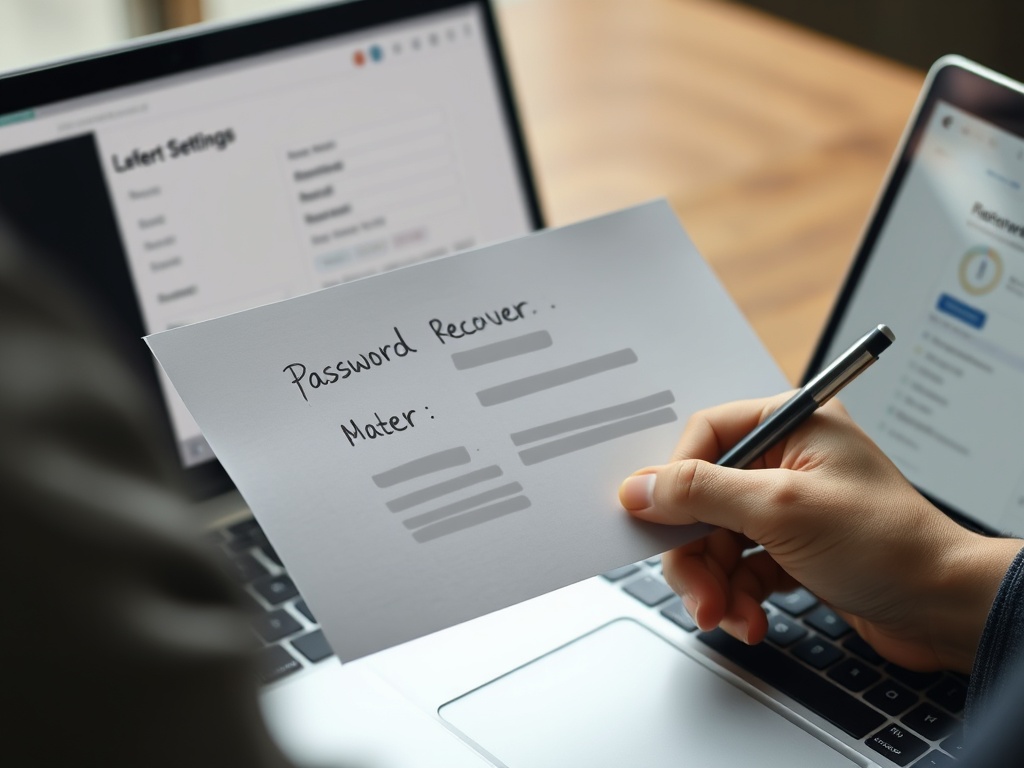
- Use secure sharing features rather than sending credentials in documents or chats.
Practical QA for vault setup
A useful rule for how to password managers is to keep the next action small enough to verify. Change one setting, test one connection, replace one habit, or compare one tool at a time. When several changes happen together, it becomes harder to know which one helped and which one introduced a new problem.
Document the baseline in plain language. For choosing and configuring a password manager without creating new risks, that means noting the device, account, browser, network, file, or workflow involved before making changes. Even a short note can prevent circular troubleshooting later, especially when more than one person is helping.
Be careful with advice that sounds universal. A recommendation can be correct in one context and wrong in another because master password, vault, autofill, passkey do not affect every reader the same way. The best next step is the one that matches the reader's device, account risk, budget, skill level, and tolerance for disruption.
The middle-of-funnel reader usually needs enough confidence to act, not every technical detail. Give them a safe path, a quick way to test results, and a sign that tells them when to stop and ask for expert help. That balance keeps how to password managers practical instead of overwhelming.
When the choice affects money, access, data, or security, prefer reversible actions first. For choosing and configuring a password manager without creating new risks, that might mean testing with a spare cable, trying a live USB, exporting a backup, reviewing permissions, or checking a claim against an original source before making a permanent change.
For shared households or teams, assign an owner for the next step. One person should confirm the setup, keep the recovery details, record the decision, or update the document. Clear ownership turns how to password managers from a vague concern into a manageable workflow.
If an external guide, vendor page, or support article is part of the decision, check that it matches the device, account, region, and software version involved. General advice is useful, but the final action should fit the exact context in front of the reader.
Use the internal links in this article as a learning path. They are not side notes; they point to adjacent problems that often appear once readers start fixing how to password managers, such as access, security, hardware, reporting, or publishing workflow gaps.
A final quality check is to ask what would prove the advice worked. For how to password managers, the evidence might be a successful login, a restored file, a cleaner URL, a steadier connection, a fewer-copy report, or a clearer publishing brief. Measurable outcomes keep the article useful after the first read.
That outcome should be easy to explain to someone else. If the reader cannot describe what changed, why it mattered, and what to watch next, the guidance needs one more practical check before it is complete.
Make secure logins easier to keep
Use the steps above the next time how to password managers creates uncertainty. A careful first check can prevent unsafe clicks, wasted setup time, and avoidable support requests.